LiveTimer became Syncd on February 21st. Read more.

Adding Classifications in iPhone / Mini Mode

Posted by Dan Gebhardt on March 18th, 2010

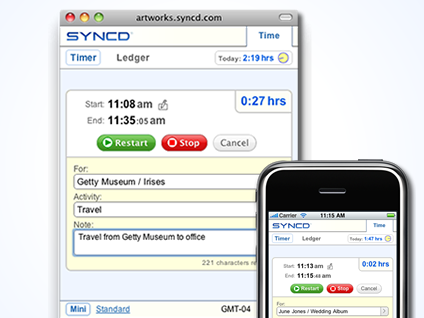
It is once again possible to add classifications, such as clients, projects, and tasks, to your account using your iPhone, iPod Touch or desktop browser in Mini Mode. We regret that this capability, which was available in LiveTimer, has been unavailable since the Syncd launch. Although it's taken longer than expected to wrap this up, we hope you like the result.

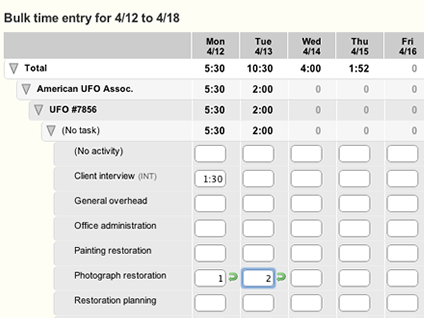
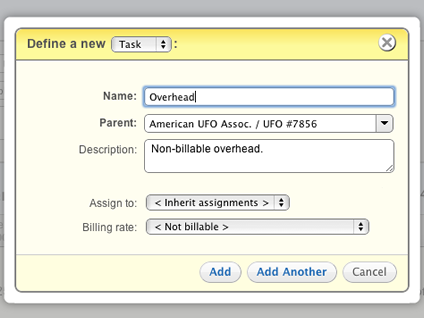
As you can see above, there's a new add button just to the right of the search field in selector windows. Click this button to open a new dialog, which provides the same capabilities as Syncd's standard, full-sized interface. You'll be able to add clients, projects and tasks, assign users and define billing rates, all within Mini Mode.

Thanks for everyone's patience as we've redesigned this feature. Please give it a try and let us know what you think!

Tool Windows

Posted by Dan Gebhardt on March 10th, 2010

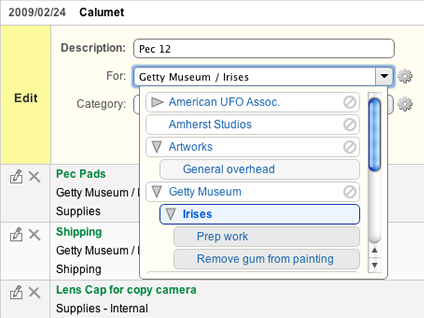
We've just added a little feature to Syncd that we hope will have a big impact on your productivity. We call them tool windows because they're a cross between a tooltip and a dialog window. These compact windows provide extra information and options without leaving the current page.

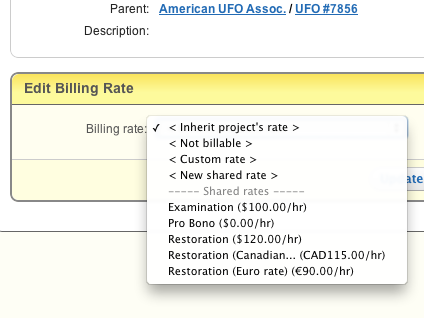
In order to open a tool window, just click on the gear symbol that now appears next to most selectors. A small window should appear hovering over the page with information and options related to the currently selected item. For instance, the image above shows a tool window for a project. It includes links to the project and its client, the description for the project, its billing rate, as well as links to create a new client, project or task.

In order to close tool windows, just click anywhere on the page (even on the tool window itself) or press the Escape key.

We hope that these little windows save you a lot of clicks!

What's New in Syncd?

Posted by Dan Gebhardt on March 1st, 2010

For the transition from LiveTimer to Syncd, we've rewritten much of the architecture and interface of our application. We've tried to make these changes appear incremental in nature to help you feel immediately comfortable with Syncd. Now that the transition period is over, we'd like to dig deeper into Syncd's new features to help you make the most of your account.

Improved Work Structure

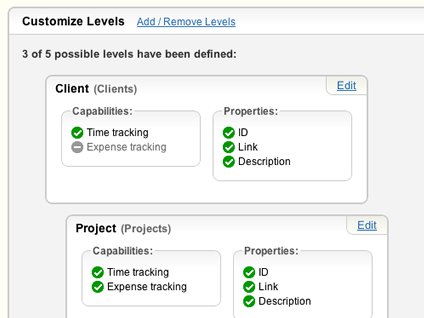
In LiveTimer, accounts were limited to a maximum of three levels of work, typically named clients, projects and tasks. In Syncd, you can now define up to five levels, such as:

  • Five levels of projects
  • A top level of clients, followed by several levels of projects
  • A top level of clients, followed by projects, followed by several levels of tasks

Multiple levels allow you to break up your work into more manageable "chunks", which in turn can be broken down further. Note that, even if you've set up your account to allow multiple levels of work, you only need to use the levels that are appropriate for any given job.

Furthermore, each work level can be named and customized. For instance, you may want to track ID fields for clients, but not for projects. You may want to allow time tracking only for tasks, and expense tracking only for projects. Check out the available options in Settings / Work Structure.

User groups

User groups have been added to simplify the assignment of users to work. For instance, let's say you have a group of developers who all work on the same projects. Instead of assigning every individual to every project, you'll be able to assign them to the Developers group, which can then be assigned to the appropriate projects. When a new developer joins your team, just add her to the Developers group to make her a member of all of your Developer projects.

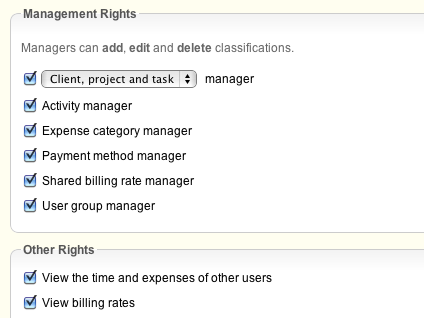
User groups can be created and managed via the Manage tab. Note that user assignments must be enabled first (see Settings / Users and groups).

Flexible User Assignments

In LiveTimer, users could only be assigned at the middle level of work, typically called projects. In Syncd, users and groups can be assigned at any level. Assignments are inherited at lower levels by default, but can be overridden.

If you have a multi-level, multi-user account, please take a moment to review your assignments from the Manage tab. You may wish to move some assignments to the top level, and then inherit those assignments at lower levels.

Flexible Billing Rates

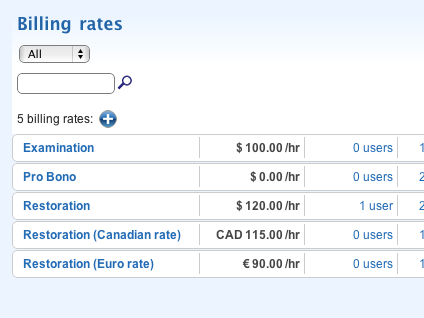
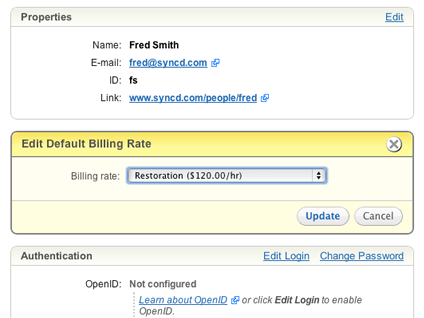
Instead of assigning billing rates for users OR clients, projects and tasks, you can now do both. Default billing rates can be set for each user and can optionally be overridden for specific clients, projects and tasks.

New Selectors and Dialogs

We've completely rewritten our selectors and dialogs, making it faster and easier than ever to search, select, and create clients, projects, etc.

The new selectors load data dynamically when your page loads, keep it cached in your browser, and refresh it as needed (if say, a new item has been added). Therefore, there shouldn't be a lag as you reopen selectors while starting and stopping your timer throughout the day.

The selectors are now completely keyboard accessible. You can tab into them from forms (or use Shift + Tab to reverse tab into them from the Note field in the Timer). You can navigate among the items in the selectors with Up / Down / Page Up / Page Down. You can even expand (Ctrl + Down) and collapse (Ctrl + Up) nodes without clicking on the arrow toggles.

Searching is also faster and easier. You can search for a word or word fragment, or an exact match. As you're browsing through items, type "/" to select and expand the current entry to view its descendents.

If you don't find what you're looking for, and want to create it, just type its name! If you have permission to create items, you'll see the new item's name appear with a "+" next to it. Select that item with Return or Tab or using the mouse.

You'll then be able to create it in a dialog without leaving your current page. Your selectors should dynamically refresh to include the new data.

Questions?

Please don't hesitate to contact us with questions, suggestions or comments using the feedback form in the Help section of your account.

Thanks again for your patience with our name change and the scope of this release. We're looking forward to rolling out some more features, but in more manageable "chunks", very soon.

Follow Syncd on Twitter Subscribe to the Syncd News